
How to Export Contact List From Gmail in 5 Easy Steps
To export your Gmail contact list, first sign in and open Google Contacts from the Apps grid or contacts.google.com. This is the easiest way to manage all your contacts in one place. Whether you want to back up your contacts or transfer them to another service, exporting is a simple and quick process.
Next, select the contacts or labels you want to export. You can choose individual contacts or entire groups depending on your needs. Then, pick your preferred export format—Google CSV, Outlook CSV, or vCard—based on where you plan to use the contacts.
After that, click Export to download the file, saving it securely on your device. Finally, import this file into other devices or apps for easy syncing.
Keep going to discover tips on managing and backing up your contacts efficiently.
Key Takeaways
- Sign in to Gmail, click the Google Apps grid icon, and open Google Contacts from the dropdown menu.
- Select specific contacts or groups by checking boxes or filtering with labels for export.
- Choose the export format: Google CSV, Outlook CSV, or vCard based on your needs.
- Click the “More” menu, select “Export,” and download the contacts file to your device.
- Import the exported file to other devices or apps for seamless contact management and backup.
It’s pretty simple once you get the hang of it! Just follow these steps, and you’ll have your contacts ready to go in no time.
Open Google Contacts in Your Gmail Account

Before you can export your contacts, you need to open Google Contacts within your Gmail account. Start by signing in to Gmail using your Google credentials to guarantee you access the correct Google account linked to your contacts.
Once signed in, click the Google Apps grid icon located at the top-right corner of the Gmail interface. From the dropdown menu, select “Contacts” to open Google Contacts in a new tab or window.
Alternatively, you can bypass Gmail and directly visit contacts.google.com after completing the sign-in process with your Google credentials. This way, you’ll immediately access your contacts without extra steps.
Select Which Gmail Contacts to Export

When you’re ready to export your Gmail contacts, you can choose to export all of them or just specific groups by selecting the relevant labels. In Google Contacts, use the contacts filter to view contact groups organized by labels.
To export specific contacts, hover over each profile picture and check the boxes to select contacts individually. This contact selection process lets you control exactly which contacts to export.
The export options include exporting all contacts or only those in chosen labels, making it easy to manage your contact list efficiently.
| Action | Location | Purpose |
|---|---|---|
| Select contacts | Google Contacts | Choose individual contacts |
| Use labels | Sidebar | Filter contact groups |
| Export specific contacts | Export menu | Export contacts selectively |
Choose the Best Gmail Contacts Export Format
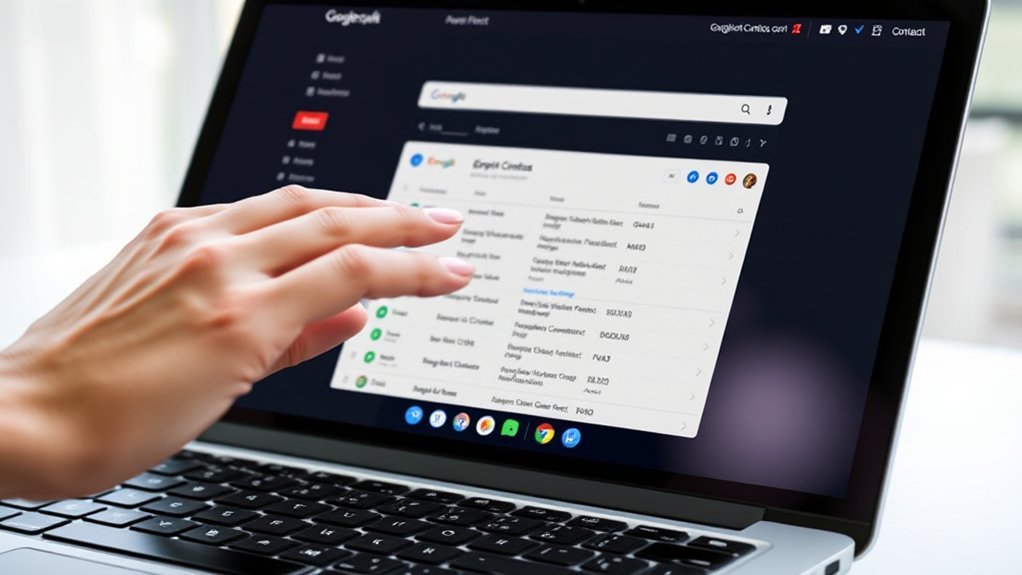
After selecting which contacts to export, you’ll need to pick the best format for your needs. The Gmail contacts export format you choose depends on your intended use and file compatibility.
If you plan to re-import contacts into Google services, the Google CSV file preserves detailed contact details perfectly. For moving contacts to Microsoft Outlook or Office apps, the Outlook CSV file is your go-to option.
Alternatively, the vCard format is ideal for Apple devices and CRM systems, supporting photos and extra contact info. Each export option has strengths in import/export contacts and contact management, so consider where you’ll use the file.
Exporting in multiple formats gives you flexibility for future migrations and guarantees smooth contact management across various platforms. It’s a smart way to keep things running smoothly no matter what device or app you switch to.
Export and Save Your Gmail Contacts File
Since you’ve chosen the right export format, open Google Contacts from the Google Apps menu while signed into your Gmail account to begin exporting.
Click the three-dot menu or the “More” option, then select “Export” to access the export settings.
Choose your preferred export format, such as Google CSV or Outlook CSV, depending on how you plan to use your contacts.
Next, click “Export” to download the contacts file, which will be saved automatically in your device’s downloads folder.
For safe saving contacts, consider storing this file on external storage or emailing it to yourself for backup.
This way, your contacts are securely exported and ready whenever you need to access or restore them on any device.
Import Gmail Contacts to Other Devices and Apps
Although exporting your Gmail contacts is straightforward, importing them into other devices and apps is just as simple and essential for keeping your contacts accessible. After you export contacts from Google Contacts in CSV format or vCard, you can easily import contacts into most smartphones or email services.
For device transfer, use the app’s import feature to upload your contact file, making sure it’s compatible with the platform. This import/export process helps maintain an updated contact list across all your devices.
Regularly updating and syncing your exported contact files makes contact management easier, so your Gmail contacts stay consistent whether you switch devices or apps. Following these steps guarantees a smooth import of your Gmail contacts, making contact management efficient and hassle-free.
Frequently Asked Questions
How Do I Export an Entire Contact List?
You export your entire contact list by opening Google Contacts and selecting “Export.” Then, choose “All contacts” and pick your preferred format.
After that, just click “Export.” It’s pretty straightforward.
Make sure to save the downloaded file securely. You’ll want it handy as a backup or if you need to transfer your contacts to another platform.
How Can I Export a List of Emails From Gmail?
You can export your Gmail email list in seconds—no rocket science needed! Just open Google Contacts, select your emails, hit “Export,” choose a format, and boom, your contacts are saved for whatever you need next!
It’s super easy once you get the hang of it. Trust me, you’ll wonder why you didn’t do it sooner!
How Do I Get a List of Contacts in Gmail?
You get a list of contacts in Gmail by opening Google Contacts from the Google Apps menu. There, you can view, search, and select your contacts.
It’s pretty straightforward to organize them as needed before exporting or managing your list. Just take a moment to explore the options, and you’ll get the hang of it in no time!
How Do I Export My Google Contacts to a VCF File?
You just open Google Contacts, select the contacts or all, click the three-dot menu, choose Export, pick the vCard format, then click Export again.
Your contacts will download as a VCF file to your computer. It’s pretty straightforward and quick!
Conclusion
Did you know over 1.5 billion people use Gmail worldwide? Exporting your contacts guarantees you never lose those valuable connections. By following these simple steps, you can easily back up or transfer your contacts to other devices and apps.
Taking a few minutes to export your Gmail contacts keeps your network accessible and secure, no matter where you go. So, go ahead and keep your contacts handy—it’s quick and worth it!
Exporting your Gmail contact list is a smart move to protect your valuable information. Whether you want to back up your contacts or transfer them to another platform, these easy steps make the process simple and stress-free. Keeping your contacts exported means you always have access to your network, even if you switch devices or experience technical issues. Don’t wait until you lose important connections—export your Gmail contacts today and enjoy peace of mind knowing your contact list is safe and easily accessible whenever you need it.