How to Edit DocuSign Documents After Signing
You can’t directly edit a DocuSign document once all recipients have signed because the fields lock to protect the document’s integrity. This means any changes after signing aren’t possible to keep everything secure and legally binding.
If you spot errors after signing, you’ll need to void the original envelope and send a corrected version to your signers.
Before signing completes, though, you can use the “Correct” feature to update recipient details or tweak the document. This option is handy if you catch mistakes early or need to adjust who’s signing.
Keep going to understand how to manage these changes smoothly and maintain compliance. It’s all about making sure your documents stay accurate without risking their validity.
Key Takeaways
- DocuSign documents cannot be edited once fully signed and the envelope is closed.
- To correct errors after signing, the original envelope must be voided and a new one created.
- The “Correct” feature is only available before all recipients have signed, not after completion.
- Voiding an envelope invalidates it but maintains the audit trail for legal compliance.
- Resend a new envelope with corrected documents to ensure signers approve the updated version.
When Can You Edit a DocuSign Document After Signing?
When can you edit a DocuSign document after signing? You can only edit a document if the envelope is still in progress and hasn’t been fully signed by all recipients.
Once the document is completely signed and the envelope is closed, it becomes uneditable. At that point, you can’t make any corrections directly to the signed document.
After full signing and envelope closure, the document can no longer be edited or corrected directly.
Instead, you’d need to void the original envelope and send a new one with the necessary changes. However, before the signing process finishes, you have the option to use the “Correct” feature to update recipient details or replace documents within the envelope.
This lets you fix errors or make adjustments while the envelope is still pending. But once it’s signed, editing is no longer possible.
How to Use DocuSign’s “Correct” Feature Before Signing Completes
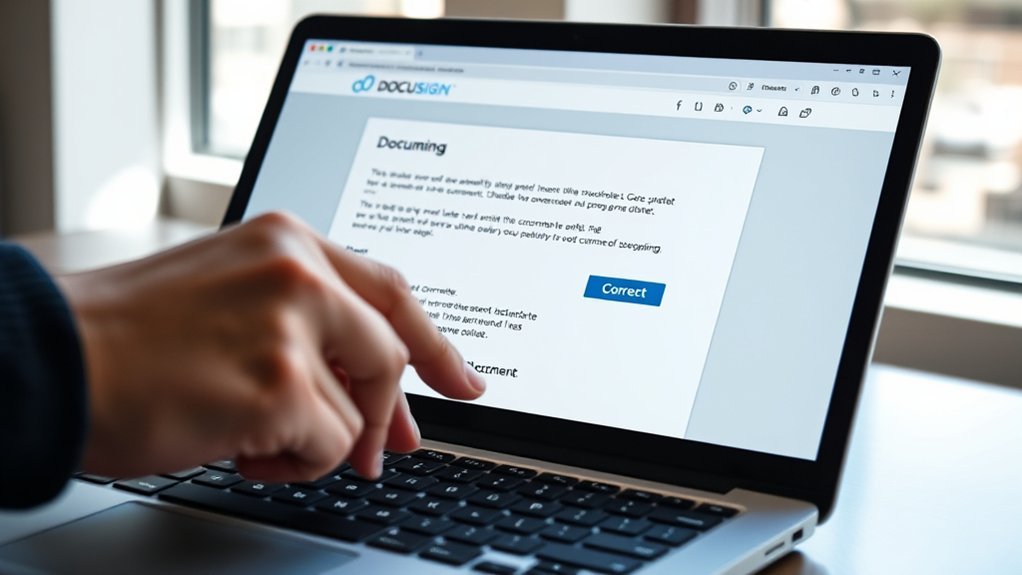
Although you can’t edit a DocuSign document once it’s fully signed, you can make changes before that by using the “Correct” feature. When your envelope is still in progress—that is, before the final recipient has signed—you can access “Correct” from the Manage or Agreements page.
This lets you modify envelope details, update recipient information, replace documents, or reposition fields without starting over. Simply select the envelope marked as in progress and choose “Correct” to make the necessary adjustments.
Keep in mind, once the envelope is signed and completed, the “Correct” option disappears, locking the document from further edits. Using “Correct” guarantees your envelope is accurate and ready before it’s fully signed and finalized.
Which Document and Recipient Changes Are Allowed Before Signing Finishes
Because DocuSign locks documents once the signing process finishes, you can only change recipient details or document content while the envelope is still in progress.
Before signing completes, you can edit recipient names and emails, adjust document text and layout, and add, move, or remove signature fields. These modifications help guarantee accuracy and clarity.
However, once a recipient signs, these edits aren’t allowed.
| Change Type | Allowed Before Signing | Emotional Impact |
|---|---|---|
| Recipient Name | Yes | Relief in correction |
| Recipient Email | Yes | Confidence in delivery |
| Document Text | Yes | Assurance of clarity |
| Signature Fields | Yes | Control over signing |
| Any Changes After | No | Frustration avoided |
Making timely modifications keeps your signing process smooth and error-free.
Why You Can’t Change Signed Fields or Swap Documents After Signing
You can’t change signed fields or swap documents after signing because DocuSign locks these fields to protect the document’s integrity. Making any edits would break the legal and security protections built into the system.
To keep your documents trustworthy, the platform prevents changes once the signing is complete. This way, everyone can be confident that what was signed is exactly what was agreed upon.
Signed Fields Are Locked
Once a document is fully signed in DocuSign, the signed fields lock permanently to protect the authenticity and integrity of the signatures. You can’t edit these locked fields because DocuSign uses strong cryptographic security to prevent any changes after signing.
This means the signed fields and the document itself become tamper-proof, ensuring the agreement remains legally valid and trustworthy. If you try to edit or alter any signed field, the system won’t allow it, as doing so would compromise the document’s enforceability.
Instead, if you need changes, you must void the original document and create a new one to be signed from scratch. This locking mechanism safeguards both you and all parties involved by maintaining a clear, unaltered audit trail.
Document Replacement Not Allowed
Why can’t you swap or replace documents after signing in DocuSign? Once a signed document is complete, DocuSign locks it to prevent any edits or replacements. This guarantees the document’s authenticity and legal standing remain intact.
Here’s why you can’t change signed fields or swap documents post-signing:
- The signed document becomes immutable, blocking any edits.
- Swapping or replacing would break the audit trail and compromise trust.
- DocuSign restricts modifying signed fields to maintain security.
- To make changes, you must void the original and create a new envelope.
Ensuring Document Integrity
DocuSign locks signed fields and document content to keep everything secure and trustworthy after signing. This locking preserves the document integrity of your signed documents, preventing any unauthorized modifications.
If you could change signed fields or swap documents after signing, it would compromise the original audit trail. That would make it impossible to verify authenticity.
DocuSign uses cryptographic security features to assure any post-signature alterations are easily detected. That’s why direct edits after completion aren’t allowed.
To make changes, you must void the original document and send a new envelope. This strict approach guarantees the legal and security protocols stay intact, maintaining trust in every signed document you manage.
How to Correct Recipient Information Without Voiding a DocuSign Envelope
If you need to update recipient information before everyone has signed, you can easily do so without voiding the envelope. DocuSign allows you to correct recipient details like names or email addresses as long as the envelope remains open and unsigned by all parties.
To correct recipient information without voiding the envelope, just follow a few simple steps:
- Go to the Manage or Agreements page and locate your envelope.
- Select the “Correct” option to enter edit mode.
- Update the recipient’s name or email address as needed.
- Save your changes and resend the envelope for remaining signatures.
It’s pretty straightforward, and this way you don’t have to start over or cancel anything. Just make sure no one has signed yet!
What to Do When You Need to Fix Errors After the Envelope Is Completed
Once an envelope is completed, you can’t edit the signed document directly. To fix any errors, you’ll need to void the original envelope and send a corrected version for signing.
Keep in mind, this process guarantees your documents stay legally valid and properly tracked. So, while it might seem a bit extra, it’s really the best way to make sure everything stays official and organized.
Voiding And Reissuing
Although you can’t edit a document after all parties have signed, you can still correct errors by voiding the completed envelope and sending out a new, updated version. Voiding the original envelope invalidates it, preserving the audit trail’s integrity.
After voiding, reissuing a corrected envelope lets you capture accurate information without altering the signed record.
To properly void and reissue:
- Void the original envelope to prevent further use.
- Notify all signers about the voided document and explain why.
- Create a new envelope with the corrected information.
- Send the new envelope for signatures to complete the process.
This method keeps your documents legally compliant while making sure corrections are clearly managed. It’s a simple way to fix mistakes without causing confusion.
Limitations On Post-Signature Edits
Even after everyone signs and completes an envelope, you can’t directly edit the document or its fields. This post-signature limitation preserves the document integrity essential for legal enforceability.
If you spot errors after the envelope is completed, the only way to fix them is to void the original document. Then, you’ll need to create a new envelope with the corrected information and send it out for signatures again.
Editing signed fields post-signature isn’t allowed, so trying to make changes on the completed document won’t work. If some recipients haven’t signed yet, you might still adjust certain details or add documents before finalizing.
But once the envelope is fully signed, voiding and reissuing is the only reliable way to maintain accuracy while respecting document integrity.
How to Void and Send a New DocuSign Envelope to Fix Signed Documents
Wondering how to correct a DocuSign document after it’s been signed? You can void the original envelope and create a new one with the corrected document.
Voiding invalidates the original and releases all signers from their commitments, but it doesn’t delete the signed record—it keeps the audit trail intact.
Here’s how to fix signed documents by voiding and resending:
- Go to the Manage or Agreements page and select the envelope you need to void.
- Click the Void option to invalidate the original envelope.
- Create a new envelope with the corrected document.
- Send it to the same or new signers for signing.
This process guarantees everyone signs the accurate version. Plus, it helps maintain the document’s integrity.
Best Practices to Prevent Data Entry Mistakes Before Signing in DocuSign
To prevent data entry mistakes before signing, use field duplication to keep information consistent across your document. Add descriptive tooltips to guide recipients and clarify what each field requires.
You can also enable recipient collaboration to allow multiple parties to review and complete the document accurately. This way, everyone stays on the same page and errors are less likely to slip through.
Utilize Field Duplication
When you set up field duplication in DocuSign, you cut down on manual entry errors by automatically copying information across multiple fields. This feature boosts data accuracy and reduces the need for editing after signatures are applied.
To effectively use field duplication, keep these best practices in mind:
- Configure duplicated fields during template creation to ensure consistency across names, dates, and addresses.
- Link relevant fields so changes in one automatically update others, preventing discrepancies.
- Use duplication to minimize errors that lead to post-signature edits, saving time and confusion.
- Test the document to verify duplicated fields populate correctly before sending out for signatures.
Add Descriptive Tooltips
Building on how field duplication reduces errors after signing, adding descriptive tooltips helps prevent mistakes before recipients even start filling out your DocuSign documents. Tooltips provide clear, customized guidance directly in form fields, guiding signers on formatting or acceptable data types.
By setting up tooltips during document preparation, you reduce the chance of common errors like wrong dates, misspelled names, or incorrect account numbers. This proactive step minimizes the need for editing after signing and improves overall document accuracy.
When you add tooltips, recipients get helpful prompts right where they enter information, streamlining the signing process and ensuring data integrity. Incorporating tooltips into your DocuSign forms enhances professionalism and makes signing smoother for everyone involved.
Enable Recipient Collaboration
How can you reduce data entry mistakes before anyone signs your DocuSign documents? Enable recipient collaboration to allow multiple signers to review and edit the document, catching errors early.
By setting up shared fields, you ensure consistency across all recipients. Here’s how to leverage recipient collaboration effectively:
- Grant editing rights to specific recipients for real-time corrections.
- Use shared fields and duplicate field configurations to maintain uniform data.
- Implement auto-fill options to speed up and standardize entries.
- Add clear instructions or tooltips to guide accurate data entry.
This approach not only minimizes errors but also streamlines the signing process. It makes sure your documents are accurate before finalizing.
How DocuSign Maintains Audit Trails Even When Documents Are Updated
Even if you update a DocuSign document after signing, the platform keeps a detailed audit trail that protects the integrity of your signatures and records every change. DocuSign timestamps each document update, logging who made the edits, when, and what was altered.
This thorough audit trail guarantees that previous signature data remains intact, preserving signature integrity even as content changes. By maintaining a transparent history of all modifications, DocuSign supports legal compliance and trust in your documents.
Alternatives to Editing Signed DocuSign Documents: Corrective Docs and Collaboration
While editing a signed DocuSign document is possible, you’ll often find it easier and more effective to use alternatives like corrective documents and collaboration features. These options let you manage errors without compromising signed documents.
Here’s how you can leverage these alternatives:
- Use corrective documents to make minor changes before all signatures are collected, preserving original signatures.
- Employ collaboration tools to allow multiple recipients to edit or add info before finalizing.
- If errors appear after signing, void the original and resend corrected documents for re-signature.
- Maintain open communication with signers to catch mistakes early, reducing the need for post-signature editing.
It’s a smoother way to handle things, right? Instead of wrestling with edits after signing, these methods keep everything clear and efficient.
Frequently Asked Questions
Can I Edit a Docusign After It Has Been Signed?
You can’t edit a DocuSign document once it’s signed because it locks to protect integrity.
If you need changes, you’ll have to void the original and send a new document for signing.
How Do I Edit a Document That Is Already Signed?
You can’t directly edit a signed DocuSign document. Instead, void the original envelope, update your document, then resend it for signatures.
This keeps everything legally valid and maintains the document’s integrity. It’s a simple way to make sure your changes are official and properly recorded.
How Do I Edit a PDF That Has Been Signed in Docusign?
You can’t directly edit a signed DocuSign PDF without risking its integrity. Instead, void the original, correct the document, and resend it for signing.
Trying to alter signed PDFs often destroys trust and legal proof. So, it’s best to keep the process clean and straightforward.
Can You Correct a Completed Docusign Document?
You can’t directly correct a completed DocuSign document. Instead, you need to void the original envelope and send a new one with the corrected document.
This way, you maintain legal validity and document integrity. It’s the best way to keep everything clean and official.
Conclusion
You might feel like editing a DocuSign document after signing is impossible—like trying to rewrite history itself! While you can’t just change signed fields or swap documents, DocuSign gives you tools to correct info or void and resend envelopes without losing your sanity.
Just remember, preventing mistakes upfront saves you from a paperwork nightmare. So, use these features wisely, and you’ll master DocuSign without battling an endless sea of edits and chaos!
Editing DocuSign documents after signing isn’t about breaking the rules—it’s about using the right features like corrections, voiding, or creating new envelopes. By understanding these options, you can keep your workflow smooth and avoid confusion down the line. The key is to stay proactive and handle errors early, so your DocuSign experience remains efficient and hassle-free.