
How to Edit DocuSign After Sending in 10 Steps
To edit a DocuSign envelope after sending, first check the envelope’s status to confirm it’s “In Process” and recipients haven’t all signed. This step is crucial because you can only make changes if the document is still active.
Also, make sure you enabled recipient editing before sending, which you can do through Advanced Options or template settings.
Safely update recipient info only if they haven’t signed yet. Avoid making changes to documents that have already been signed, as this can cause issues. If you find that edits are necessary after recipients have signed, the best option is to void the envelope.
Once voided, copy the envelope, replace the documents as needed, and resend it to the recipients. Don’t forget to notify them about the changes so they know to review the updated document.
Finally, keep track of the status on your dashboard to stay updated on the signing process.
Keep going to uncover more helpful tips and details on how to manage your DocuSign envelopes efficiently. This way, you’ll handle edits smoothly without interrupting the signing workflow.
Key Takeaways
- Verify the envelope status is “In Process” and not “Completed” before attempting any edits.
- Enable “Allow recipients to edit” in Advanced Options or template settings before sending the envelope.
- Edit recipient information only if they have not signed; otherwise, void the envelope to preserve document integrity.
- To update documents, void the original envelope, copy it, replace the document, and resend through the same workflow.
- Notify recipients automatically by enabling recipient editing; signed recipients won’t receive update notifications.
Check Envelope Status Before Editing
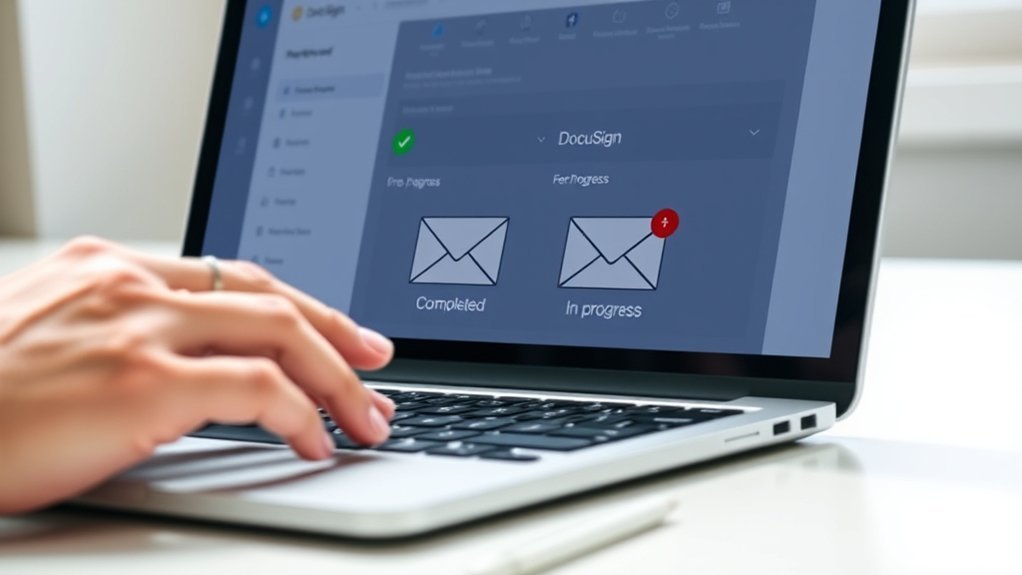
Before you start editing a DocuSign envelope, make sure its status is “In Process.” This means that not all recipients have signed yet, so changes are still allowed.
You can check the envelope status on your DocuSign account dashboard or the envelope details page. If the envelope is marked as completed or fully signed, editing is no longer possible since the document is finalized.
Keep in mind, editing only works if at least one recipient has yet to sign. Always verify the current status before attempting any changes to avoid errors.
Enable Recipient Editing Before Sending

Before sending your document, make sure you enable the recipient editing option in the Advanced Options on the send screen.
If you’re using a template, double-check that recipient editing is allowed at the template level.
If you don’t see the option, reach out to the template owner to get the necessary permissions.
Enable Editing Option
How can you let recipients edit a document in DocuSign before sending it? To activate recipient editing, navigate to the bottom of the send screen and open Advanced Options. Here, select “Edit” and check the box labeled “Allow recipients to edit.”
Remember, this must be done before sending, as you can’t enable editing afterward. For templates, verify if recipient editing is enabled at the template level, since it might be off by default. If you don’t see this option, contact the template owner.
| Step | Location | Action |
|---|---|---|
| Open Advanced Options | Send screen bottom | Click to expand settings |
| Select Edit option | Advanced Options | Enable editing controls |
| Allow recipients to edit | Edit settings | Check the box to permit editing |
| Confirm before sending | Final review | Ensure editing is enabled |
Template Editing Permissions
To let recipients edit documents through templates, you need to enable the “Allow recipients to edit” option within the template settings prior to sending. This crucial step activates recipient editing permissions, allowing recipients to make necessary changes after receiving the envelope.
Keep in mind, this setting isn’t enabled by default—you must explicitly turn it on at the template level. To do this, access the template’s advanced settings as the owner or creator, modify the template editing permissions by checking the appropriate box, and save your changes.
If you skip this, recipients won’t be able to edit the document once sent. Ensuring recipient editing is enabled in the template settings streamlines collaboration and avoids the need for cumbersome post-sending edits.
Identify Which Recipients Have Signed

You can quickly check which recipients have signed by reviewing the envelope status in your DocuSign account. Each recipient’s signature status appears next to their name, showing if they’ve completed or are still pending.
Use the progress tracker to easily track who’s signed and who still needs to sign. It makes keeping tabs on everything super simple!
Checking Recipient Signature Status
Wondering who’s already signed your DocuSign document? You can easily check the signature status on the envelope’s manage page. Here, you’ll see clear indicators next to each recipient’s name showing whether they’ve completed, viewed, or not yet opened the document.
Signed recipients will display a “Completed” or “Signed” status, while those still pending show “Sent” or “In Progress.” By clicking on a recipient’s name, you can access detailed recipient activity logs, including exact timestamps of when they viewed or signed the document.
Monitoring this information is essential before making any document editing decisions. That way, you ensure you only adjust envelopes when it’s appropriate.
This helps you stay informed about the signing progress and keeps you in control of your DocuSign workflow.
Tracking Signed Versus Pending
After checking each recipient’s signature status, it’s important to clearly distinguish who has signed and who’s still pending. You can track this easily in the envelope details, where the status updates in real-time.
Recipients who have signed show up as “Completed” along with a signature timestamp, confirming their action. Those yet to sign appear as “Pending,” often with their expected signing order and any set deadlines.
By tracking signed versus pending recipients, you’ll know exactly whose information or documents are still editable. This clear status overview helps you manage the envelope efficiently, ensuring you focus on recipients who haven’t completed their part yet.
Keeping an eye on these details is key to smooth DocuSign editing and workflow management. It really makes the whole process run a lot smoother.
Viewing Signature Completion Details
How can you quickly tell which recipients have completed their signatures in DocuSign? Simply open the envelope in your account and check the recipient details section. Here, the signature status for each recipient appears clearly, showing whether they’ve signed, declined, or are still pending.
Completed signatures are marked as “Signed” with a timestamp, letting you know exactly when each recipient signed the document. For a deeper look, click on individual recipient names or the “History” tab to view the full signing timeline and order.
This detailed information helps you identify who’s finished signing and who still needs to act. That way, you stay on top of your document’s progress without any confusion.
Update Recipient Information Safely
While an envelope is still in process, you can update recipient information like their name and email to guarantee accurate delivery. To edit recipient details, access the in-process envelope, select the recipient, and update information as needed.
This assures the document reaches the right person without affecting the content or any signatures already collected. Remember, if a recipient has signed, you can’t change their info without voiding the entire envelope.
Avoid Editing Signed Documents Directly
You can’t directly edit a document once it’s signed because it risks the integrity of the workflow. Instead, you’ll need to void the original envelope before making any changes.
This process helps maintain the authenticity and trustworthiness of your DocuSign transactions. It’s all about keeping things secure and reliable for everyone involved.
Risks Of Direct Editing
Because editing a signed document directly compromises its integrity, you should avoid making changes after signing. When you try to edit a document with existing signatures, you risk invalidating the entire agreement.
DocuSign prevents modifications post-signing to maintain legal enforceability. Here are key risks of direct editing:
- The original signatures lose their validity, raising questions about authenticity.
- Edited documents aren’t tracked or auditable, which undermines trust.
- Legal disputes may arise if altered documents are presented as original.
- The document’s enforceability can be compromised, causing potential issues in court.
To protect your agreements, it’s best not to edit signed documents directly. Instead, follow proper procedures to make sure your edits don’t jeopardize the document’s legitimacy.
Voiding Before Changes
How should you handle necessary changes after sending a DocuSign envelope? Instead of trying to edit a signed document directly, you should consider voiding the envelope first. Voiding cancels the current process, preventing any further signing or edits, which helps avoid confusion.
Once voided, you’ll need to create a new envelope with the corrected document or updated recipient information. If you copy the original envelope before voiding, it preserves the recipient list and fields, saving you some setup time.
Workflow Integrity Importance
Although it might seem convenient to edit a document after it’s been signed, doing so compromises the integrity and authenticity of the original agreement.
Keeping your workflow intact is super important to make sure you stay legally compliant and that everyone trusts your electronic signature process.
Instead of editing signed documents directly, here’s what you should do:
- Void the original envelope to prevent unauthorized alterations.
- Create a new envelope for any necessary amendments.
- Obtain fresh signatures to validate changes properly.
- Preserve the original signed document for audit trails and enforceability.
Following these steps helps keep everything above board and ensures your agreements hold up when it matters most.
Copy Envelopes With Recipient Data to Save Time
When you need to send a similar document multiple times, copying envelopes with recipient data lets you save significant time by preserving all the recipient details and any previously entered information.
To do this, simply select the “Copy” or “Copy with Field data” option from the envelope menu. Choosing “Copy with Field data” transfers all recipient-entered information to the new envelope, so you won’t have to re-enter details.
This method helps you copy envelopes efficiently while maintaining accuracy. If you update the document itself, make sure to delete the old version before copying to avoid conflicts.
Replace Documents by Voiding and Copying Envelopes
Copying envelopes with recipient data saves time, but sometimes you’ll need to update the document itself. To replace documents, you’ll handle this by voiding and copying envelopes. Here’s how:
First, void the original envelope to cancel the current process and prevent further signatures. Then, copy the voided envelope to keep all recipient and field data intact.
Next, replace the document in the new envelope with the updated version. After that, send the new envelope through the same workflow to make sure all recipients get the correct document.
This approach keeps everything clear by maintaining a record of the voided envelope and the new corrected one. It helps avoid confusion while preserving your workflow efficiency.
Notify Recipients After Envelope Changes
How do recipients stay informed after you make changes to an envelope? When you edit an envelope before recipients sign, DocuSign automatically notifies them via email about the updates.
If you enable recipient editing, recipients get notifications of document modifications during signing. You can also send completion notification emails to let recipients know that the envelope has been updated or reopened.
However, recipients who’ve already signed won’t receive notifications about subsequent changes.
Here’s a quick overview:
| Situation | Notification Status |
|---|---|
| Change before signing | Recipients automatically notified |
| Recipient editing enabled | Notifications sent during signing |
| Changes after signing | No notifications sent to signed recipients |
Track Envelope Status After Editing
Wondering how to keep tabs on your envelope after making edits? You can easily track progress and stay informed about your envelope status through your DocuSign dashboard. Here’s how to do it:
- Check the dashboard to see status updates like “Sent,” “Delivered,” “Signed,” or “Completed.” These reflect the current state after your edits.
- Review the envelope history for detailed timestamps of edits and recipient actions. This gives you a clear timeline.
- Set up notifications to get instant alerts whenever the envelope status changes. That way, you won’t miss any updates.
- Note if the envelope is voided or canceled. The status will indicate this, showing no further actions can be taken.
Contact DocuSign Support for Complex Edits
Facing complex editing challenges in DocuSign? When you need to edit envelopes beyond standard options, reaching out to DocuSign support is your best move.
Use the “Get Support” link or available contact options to connect with experts who provide tailored DocuSign assistance. They can guide you through voiding or recreating envelopes when significant edits are necessary after sending or signing.
If you encounter technical issues or unusual scenarios, submitting a support ticket ensures personalized help. Plus, the DocuSign Support and Help Center offers detailed documentation and troubleshooting guides to assist you.
Don’t hesitate to engage with support whenever system limitations or complex requirements prevent you from editing envelopes on your own. Their expertise makes sure your editing process stays smooth and compliant.
Frequently Asked Questions
Can I Edit a Docusign Document After Sending?
You can’t edit a DocuSign document after sending if the recipient has already signed. However, you can update recipient info before signing.
If you want to change the content after someone has signed, you’ll need to void the original document. Then, resend a new one for signing.
How to Correct a Mistake in Docusign?
To tackle typos or tweak details, you can correct recipient info before signing.
Can’t change content once signed, so cancel the contract and create a clean copy if errors persist after signatures.
How Do I Edit My Docusign?
You can’t directly edit your DocuSign after sending. Instead, void the original envelope, correct your document, and send a new one.
If you allowed recipient editing initially, they can adjust certain fields before signing. So, keep that in mind when setting up your document!
How Do I Edit a PDF That Has Been Signed in Docusign?
You can’t edit a PDF once it’s signed in DocuSign. Instead, you’ll need to void the original envelope and send a new one with the corrected document.
This way, you guarantee all signatures remain valid and secure. It’s a bit of extra work, but it keeps everything official and above board.
Conclusion
Editing a DocuSign envelope after sending it is like steering a river—you need to check the current, plan your moves, and steer carefully to avoid capsizing. By following these steps, you can smoothly update recipient details and documents without disrupting the signing flow.
Remember to notify recipients and monitor status closely. When things get tricky, don’t hesitate to reach out to DocuSign support to keep your process sailing seamlessly.
In conclusion, editing a DocuSign envelope after sending is totally manageable if you take it step by step. Updating recipient info or tweaking documents doesn’t have to interrupt the signing process. Just keep an eye on the envelope status and inform everyone involved. And if you hit any bumps along the way, DocuSign support is there to help you out. Following these tips ensures your signing flow stays smooth and efficient every time.