
How to Add a Person to Your Facebook Business Page in 10 Easy Steps
To add someone to your Facebook business page, start by switching to your personal profile through the business page settings. This is important because only personal profiles can manage page roles.
Once you’re in, head over to “Settings” and then select “Page Roles.”
Next, pick the right role for your collaborator. You might want to choose Admin, Editor, or another role depending on what access they need.
Enter their full name or verified email to send an invite.
Facebook usually verifies invitations within 72 hours, so make sure to let them know to accept it promptly.
Keeping your page roles updated and secure is key to managing who can access your page effectively.
If you want to dive deeper, there’s plenty more to learn about handling different roles and troubleshooting any invite issues you might run into.
It’s all about keeping your business page safe and well-managed!
Key Takeaways
- Go to your Facebook business page and click “Settings” at the top right. Then, select “Page Roles” from the left menu.
- Click “Edit” or “Add Person,” and enter their full name or verified email linked to their Facebook account.
- Assign the appropriate role like Admin, Editor, Moderator, Advertiser, or Analyst based on what they’ll be doing.
- Make sure the person is verified on Facebook. Also, check if they already have roles or pending invitations to avoid duplicates.
- Finally, let the invitee know to accept the invitation within 7 days. They can do this through email or Facebook notifications to activate their access.
Switch to Your Personal Facebook Profile for Invitations

Before you can invite people to like your Facebook Business Page, you need to switch to your personal Facebook profile. To do this, click “Use Facebook as” from your business page settings, which lets you switch to personal profile mode.
This step is essential because invitations are sent through your personal profile, not directly from the business page. Once you’ve switched, navigate to the “Build Audience” dropdown menu, where you’ll find the “Invite Friends” option.
Using this method allows you to manually select friends to invite, making your outreach more targeted and effective than relying on Facebook’s automatic suggestions. By properly switching to your personal profile and using the invite friends feature, you can actively build audience engagement and grow your page’s reach.
Access Your Facebook Business Page Settings
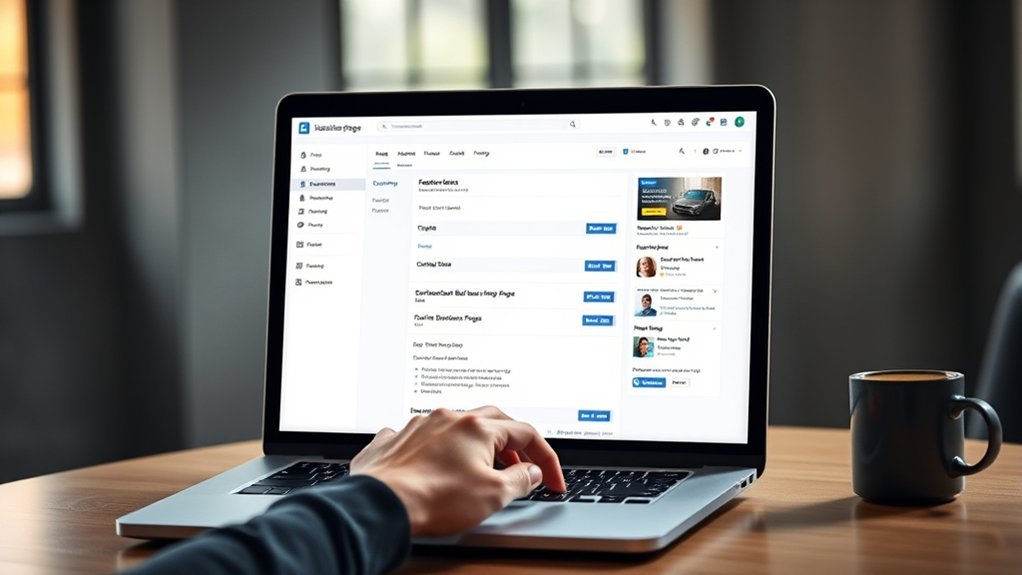
To start managing your Facebook Business Page roles, head to your page and click the “Settings” option at the top right.
From there, select “Page Roles” in the left menu to find where you can add or edit permissions.
Make sure you understand each permission level before assigning roles to keep your page secure.
Navigating Page Settings
When you want to add someone to your Facebook Business Page, you’ll need to access your page settings first. Head to the “Settings” or “Page Settings” option on your page menu.
From here, you’ll find the “Page Roles” section where you manage who can do what. Click the “Edit” button to add or remove people and assign roles like Admin, Editor, or Moderator.
Locating Roles Section
Wondering how to find the roles section on your Facebook Business Page? Start by accessing your page and clicking on “Settings” in the top right corner. This opens a menu where you can manage various aspects of your page.
From the left-hand menu, select “Page Roles.” Here, you’ll see a list of people assigned to your page along with their roles. The Page Roles section lets you manage who has access and what they can do.
Only users with roles like Admin or Editor can view and modify this area. If you want to add someone new, you’ll find the “Assign a New Page Role” box here. Just type their name or email, then select the appropriate role from the dropdown menu.
Understanding Permission Levels
After locating the Page Roles section, you’ll notice various permission levels that control what each person can do on your Facebook Business Page. These permission levels include Admin, Editor, Moderator, Advertiser, and Analyst, each with specific access rights.
Admins have full control, including managing roles and settings, while Editors can create and manage content. Moderators focus on comments and messages, Advertisers handle ads, and Analysts view insights.
Only users with Admin or authorized roles can assign or change these Page roles. Understanding these permission levels ensures you grant appropriate access rights, preventing unauthorized changes or accidental edits.
Managing roles carefully helps keep your page secure and running smoothly. This way, you can collaborate confidently with your team.
Choose the Right Facebook Business Page Role
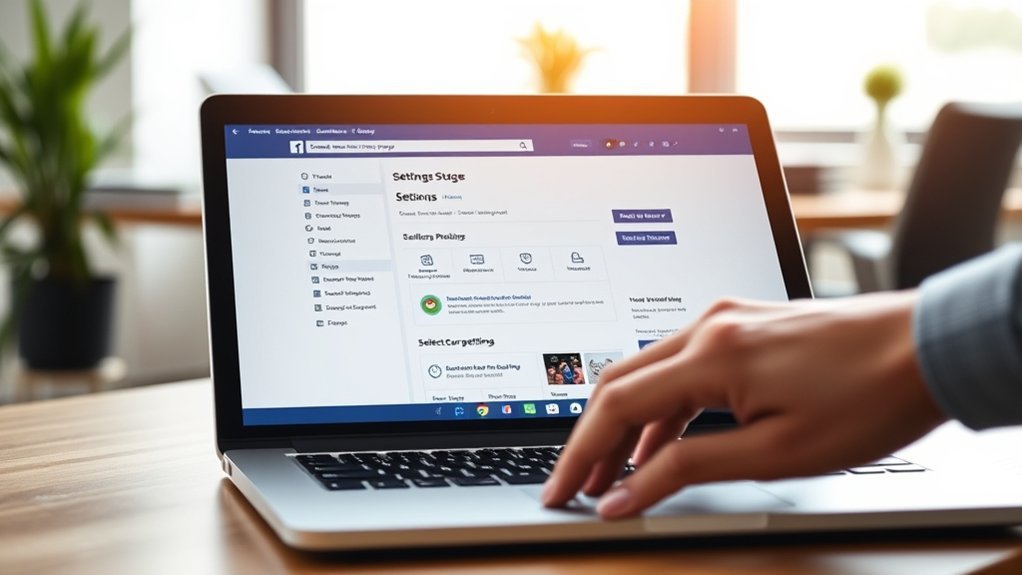
Because assigning the right role on your Facebook Business Page controls what team members can do, you need to choose carefully. Facebook Page roles like Owner, Admin, Editor, Advertiser, and Content Manager each come with specific permissions tailored to different responsibilities.
Selecting the appropriate role guarantees your team has the access they need without granting excessive admin rights. This precise permissions setup helps you maintain security and avoid accidental edits or deletions.
Effective team management depends on matching roles to tasks, whether it’s managing content, running ads, or viewing insights. And here’s something interesting—data shows pages with well-defined roles and limited admin access enjoy 42% higher engagement.
Enter the Person’s Name or Email to Send an Invitation
To send an invitation, start by entering the person’s full name or verified email to help Facebook find the right contact. Choosing the correct option guarantees your invite reaches them promptly without confusion.
Once you’ve selected the person, you can quickly send the invitation to add them to your business page. It’s a simple way to connect and grow your network!
Finding The Right Contact
How do you make sure you’re inviting the right person to your Facebook Business Page? Start by entering their full name or email in the invitation search bar within your Page settings or Business Manager. Using their email is often more reliable, especially if their Facebook profile is private or they have a common name.
Make sure the person has a verified Facebook account; unverified profiles might not show up or be eligible for an invitation. When searching by name, double-check their profile picture and details to confirm it’s the right contact.
If they’re already connected to your Page, you’ll see labels like “Already a Partner” or “Invited,” so no further action is needed. This helps you avoid sending invites to the wrong person.
Choosing Name Or Email
When you add someone to your Facebook Business Page, should you enter their name or email? You can use either to send an invitation, but each has pros and cons.
Providing the person’s email ensures the invitation goes directly to them. This reduces confusion, especially if the name is common.
However, using a name means you rely on Facebook’s profile matching, which might show multiple results. Always double-check to pick the right individual to avoid errors.
| Option | Benefit |
|---|---|
| Name | Easier if you know the person |
| More precise, direct invitation | |
| Both | Best accuracy and confirmation |
Choose wisely to ensure your invitation reaches the right person without delays or mistakes.
Sending The Invitation
Wondering how to send an invitation to someone on your Facebook Business Page? Simply enter the person’s name or email address in the “Invite People” section. If you type their name, Facebook will search your friends and contacts to help you find the right person quickly.
For emails, it’s best to manually input their email address rather than relying on Facebook’s suggestions to guarantee the invite reaches them. Remember, the person must have a verified Facebook account or email; otherwise, the invitation might be delayed or fail.
Once sent, the invite stays active for 7 days. If they don’t accept it within that time, you’ll need to resend the invitation to add them successfully to your Facebook Business Page. Easy, right?
How Facebook Verifies Invitations and Permissions
Because Facebook prioritizes security, it verifies invitations and permissions through a thorough process that includes account authentication and email validation. When you send an invitation, Facebook cross-references the recipient’s Business Manager access and applies dual-layer verification of business information and user identity before approving any role assignments.
Invitations typically process in real-time but may take up to 72 hours if additional checks are needed. You’ll need to confirm the invitee accepts within seven days, or you’ll have to resend the invitation.
Facebook stores permission levels as backend JSON data, so you can’t edit them directly. Instead, Facebook’s automated verification system manages permission accuracy and integrity, making sure only authorized users get the right access to your business page.
Notify Collaborators and Guide Acceptance
To guarantee your collaborators join your Facebook Business Page smoothly, notify them immediately after sending the invitation. Promptly inform them to check their email, spam folder, or Facebook notifications to accept the invitation within the 7-day window.
Remind them to log into the correct Facebook account linked to the invitation and complete any necessary profile or business verification steps. It’s a good idea to follow up if they haven’t accepted after a few days to avoid delays in page management.
| Step | Action | Tip |
|---|---|---|
| Notify | Tell collaborators about the invitation | Check spam or notifications |
| Accept | Use linked Facebook account | Verify profile/business info |
| Follow-up | Remind after a few days | Prevent delays in collaboration |
| Complete Verification | Finish all needed Facebook checks | Smooth acceptance process |
Troubleshoot Facebook Invitation Issues and Delays
After notifying your collaborators and guiding them through acceptance, you might still encounter issues or delays with Facebook invitations. Verification delays often happen when accounts are unverified or business info is incomplete. This can cause processing to take 72 hours or more.
Make sure you have the correct page permissions to send invites because insufficient rights can block the invitation process. Also, check if the person has already been invited or liked your page. If so, that can prevent new invites from sending.
Remind invitees to check their email spam folders and notification settings. Sometimes missed alerts can delay acceptance or cause invites to expire.
Facebook’s dual-layer verification, including email validation and business info checks, may also add to invite delays. So, patience and proper setup are really key to troubleshooting invitation problems.
Manage Facebook Business Page Roles After Adding Collaborators
Once you’ve added collaborators, head to your Facebook Business Page settings to assign or adjust roles like Admin or Editor based on their tasks.
Keep an eye on these roles regularly to make sure everyone has the right level of access.
You can always update or remove permissions to maintain control and security.
Role Assignment Overview
When you add collaborators to your Facebook Business Page, you can assign them specific roles like Admin, Editor, or Moderator. Each role grants different levels of access.
Role assignment lets you control what each person can do. This keeps your page secure while enabling teamwork.
You manage page roles in the Page Settings under “Page Roles.” There, you select a person and assign a role fitting their responsibilities.
| Role | Key Permission |
|---|---|
| Admin | Full control |
| Editor | Manage content |
| Moderator | Handle comments and messages |
This setup guarantees everyone has the right access without unnecessary risks. It also streamlines your Facebook Business Page management.
Monitoring And Adjustments
Although adding collaborators to your Facebook Business Page expands your team’s capabilities, you need to regularly monitor and adjust their roles to maintain security. Check the activity logs frequently to track actions taken by each user and spot any unauthorized or suspicious behavior early.
Prompt role adjustments are essential whenever a collaborator’s responsibilities change or if they no longer need access. Manage permissions carefully by limiting the number of admins and assigning roles strictly based on necessity. This reduces the risk of accidental or malicious changes.
Keep a detailed record of all role modifications and permission management updates to maintain an audit trail, ensuring accountability and safeguarding your page’s integrity over time. Regular monitoring keeps your Facebook Business Page secure and well-managed.
Best Practices for Secure and Effective Role Management
To keep your Facebook Business Page secure and running smoothly, you’ll want to assign team members only the permissions they truly need. Limiting permissions helps tighten access control and reduces security risks by preventing accidental or unauthorized changes.
It’s a good idea to regularly review activity logs and permission settings. This way, you can spot suspicious activity early and take action before it becomes a problem.
When a team member leaves or no longer requires access, revoke their permissions immediately. This helps avoid potential breaches and keeps your page safe.
Also, try to document all role changes and permission updates. Creating a clear audit trail is great for accountability and makes managing your team easier.
Before granting full access, consider trial periods to test roles. This lets you confirm users have appropriate control levels without risking too much upfront.
Following these best practices will strengthen your page’s security and guarantee effective role management. It’s all about staying proactive and keeping things under control.
Tips for Maintaining Control and Security on Your Facebook Page
Ensuring your Facebook Business Page stays secure means assigning roles carefully. Match each team member’s tasks with the right permissions to keep things running smoothly. For example, give Editors the job of managing content while Advertisers focus on campaigns. This way, you limit unnecessary access.
It’s a good idea to regularly review and update these roles. Doing this helps prevent unauthorized control and keeps security tight. Plus, you can use Facebook’s activity logs to see who’s making changes and what they’re doing. That way, everyone stays accountable.
If someone no longer needs access, don’t wait—revoke their permissions right away to reduce risks. Always stick to the least-privilege principle by giving only the permissions necessary for each social media task. This approach helps minimize any accidental or malicious actions. It’s the best way to keep full control and security over your Facebook Business Page.
Frequently Asked Questions
Can Two People Have Access to a Facebook Business Page?
Yes, you can give two people access to a Facebook Business Page by assigning them different roles.
This way, both can manage content, run ads, or view insights. It helps ensure smooth collaboration without compromising security.
How Do I Edit Family Members on Facebook?
You might think editing family members is complicated, but it’s actually simple. Just go to your profile’s “About” section, then click “Family and Relationships.”
From there, you can easily add, remove, or edit members. And don’t worry, privacy controls are included to keep things secure.
How to Recover Facebook Page Admin?
You’ll need to verify your identity through Facebook’s recovery process, request admin rights from current admins, or submit proof of ownership.
Using Facebook Business Manager or contacting Support also helps you regain admin access effectively.
It might seem a bit tricky at first, but taking these steps usually gets you back in control. Just be patient and follow the prompts carefully.
How Do I Add a Person to a Business Page?
Want to play boss? Just invite your trusty sidekick as Admin or Editor via Page settings. They’ll get an invite—accept it within a week, or you’re stuck ruling solo.
Don’t forget to verify!
Conclusion
Adding someone to your Facebook business page is like handing over a key to your digital storefront—it’s powerful and requires trust. Just like a locksmith wouldn’t give out duplicates without care, you shouldn’t either.
By following these steps, you guarantee your page stays secure while growing your team. Remember, 60% of businesses say proper role management helped prevent security issues, proving that careful control keeps your page—and your brand—safe and thriving.
So, when you add a person to your Facebook business page, you’re not just sharing access; you’re protecting your business. Proper role management is key to security and smooth operation. Keep your team safe, your page secure, and watch your brand flourish with confidence.